 Kudret Keskin

Claude and storage
Save a fictional shift note. Close and reopen the same board on your account before entering real names.
Small Business Apps / Build guide
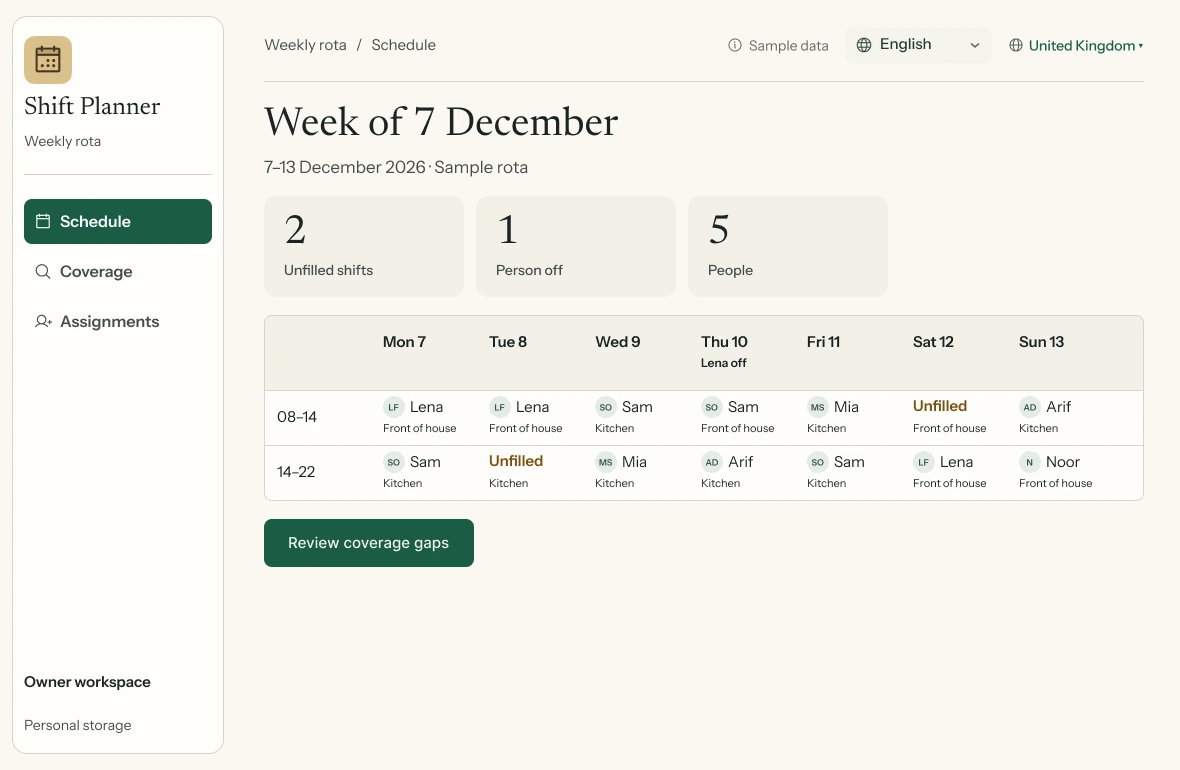
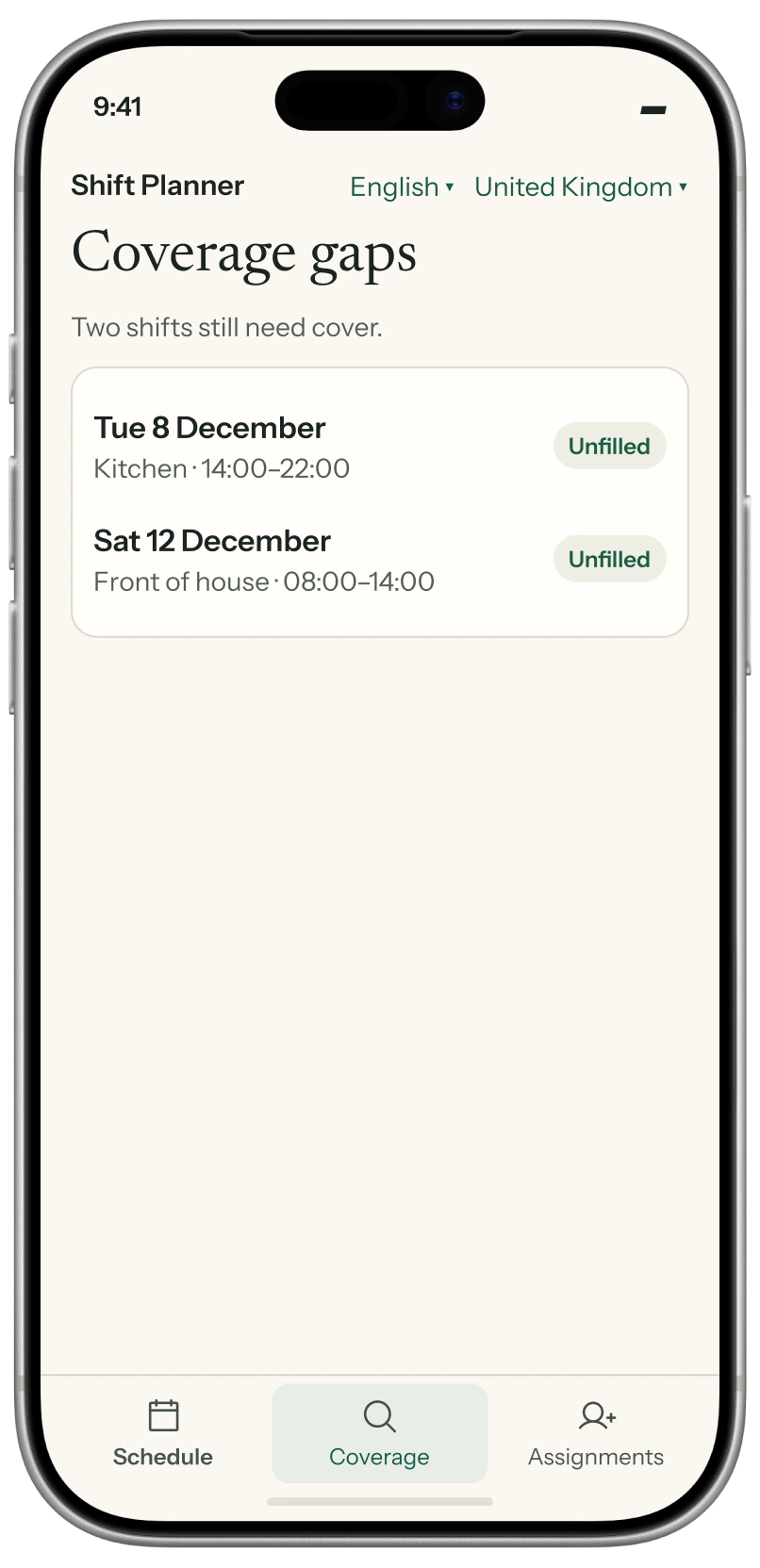
See who can work, who’s on the rota, and which shifts still need cover before the week starts.
 Buy on Gumroad · $19
19-page PDF · 10 guided steps · Built with Claude
How it works
Drop the PDF into Claude, then follow the guide one prompt at a time. No code needed.

The weekly rota
Tuesday’s kitchen shift and Saturday’s front-of-house shift still need cover. Thursday morning is assigned to Sam while Lena is on leave.
Inside the guide / Step 03
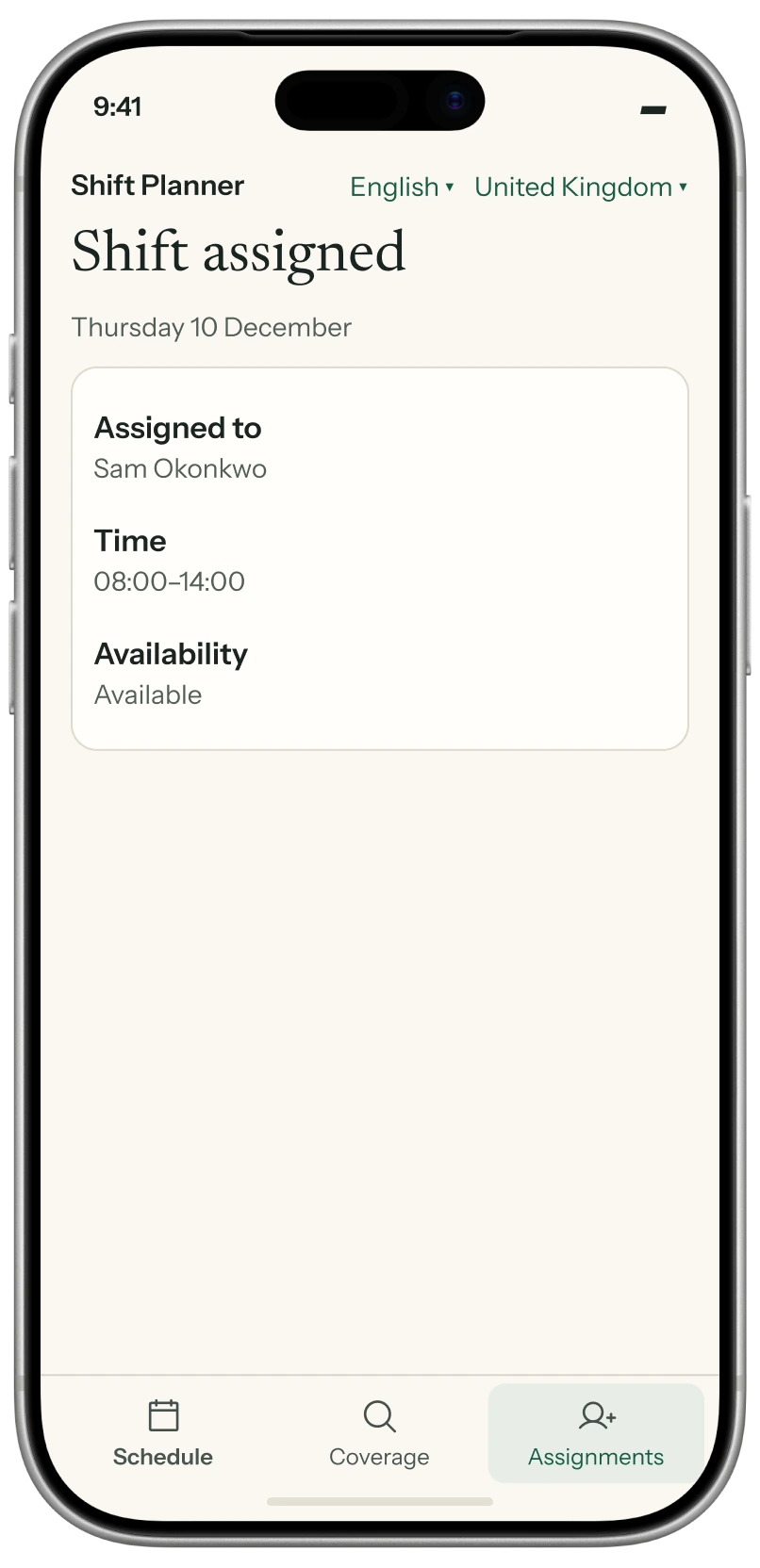
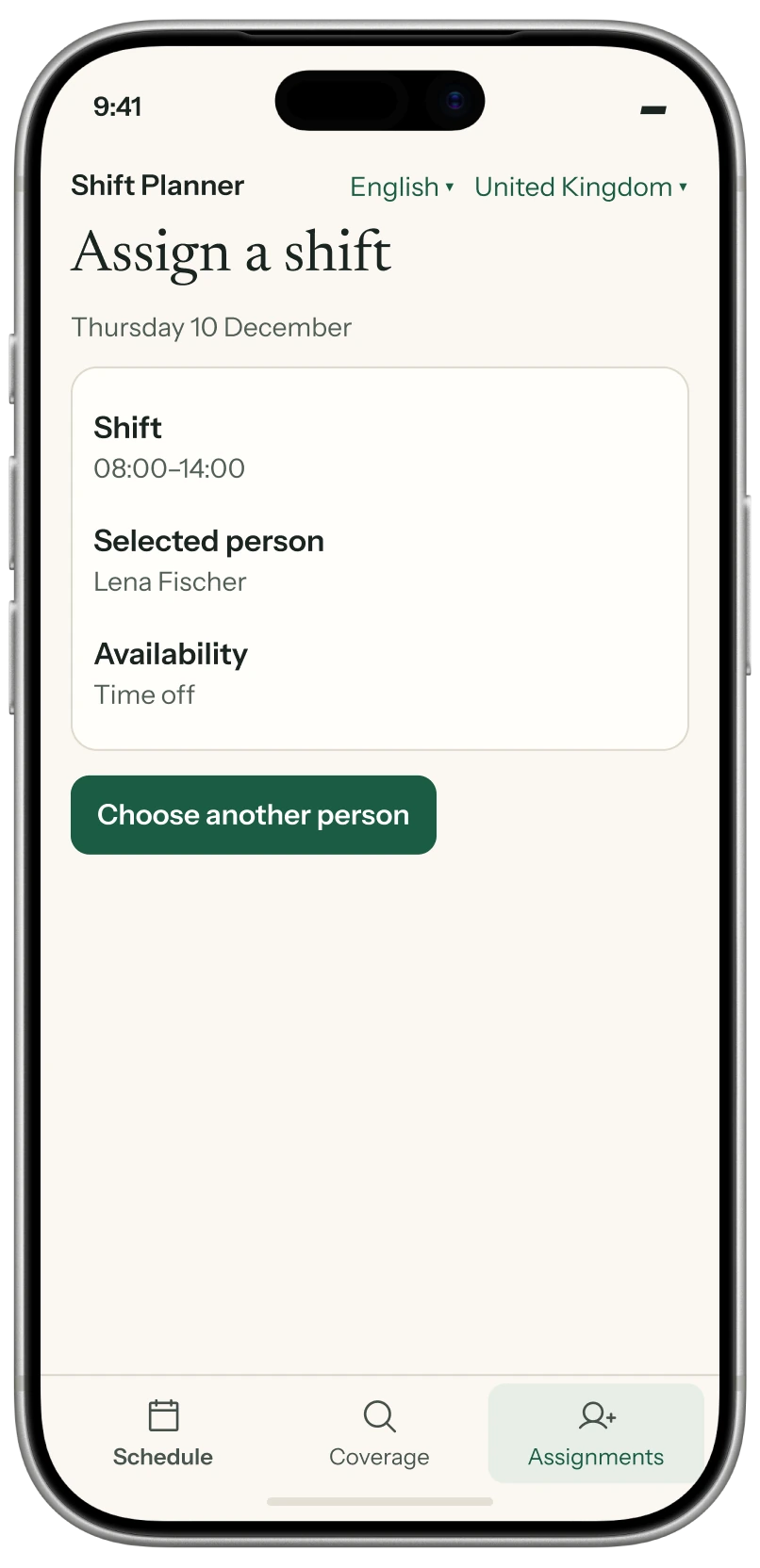
Sam covers Thursday morning. Try assigning Lena, who is on leave. Choose another person or confirm the exception. Cancelling keeps Sam on the shift.

Find the gap, check who
is away and see when the
shift is covered.
Buy on Gumroad · $19
 by Kudret Keskin
The build sequence
Paste one prompt into Claude, check the result, then move on. Every step includes a fix prompt.

Save a fictional shift note. Close and reopen the same board on your account before entering real names.
The hours summary counts time assigned on the rota. Check the working-time rules that apply to your team.
Where Claude Desktop supports it, install the board and opt in to reminders about unfilled shifts.
Shift Planner / PDF guide
Build your weekly rota in ten steps, then export a team PDF, an hours CSV and a private JSON backup.
Buy on Gumroad · $19
Update the same artifact. Let me set usual available or unavailable days for a person and enter a time-off period with a start date, end date and optional note. Show absences on the week and list time off for this week and the next. Show a date error beside the end date if it precedes the start.
Use Lena Fischer on leave on Thursday 10 December 2026. Try assigning her to a Thursday Front of house shift from 08:00 to 14:00. Show the conflict before saving, like page 16. Offer Choose another person or an explicit exception. Cancel must keep the prior assignment. If I choose cover, offer available, qualified Sam Okonkwo as on page 17. Save only the option I confirm.
Keep the sample people and personal storage. Handle the confirmation inside the artifact.
Cancel the warning and verify the assignment is unchanged. Reopen it, choose Sam and save. His name should appear once. Then inspect the separate exception example on page 18.
Update the existing assignment flow. Reproduce Lena’s Thursday leave conflict, keep the previous assignment until I confirm, and show me both routes using the same sample shift.
Questions
 What happens if someone is away?
The rota flags the conflict. Choose an available colleague or confirm the exception before assigning the shift.
 Can I print the week for my team?
Yes. The weekly print view includes assignments and unfilled shifts, so the team can see where cover is still needed.
 Do scheduled hours include actual attendance?
The summary adds up the hours assigned on the rota. It does not capture clock-ins or payroll.

Keep going
Where I write about this
X
@kudretocom
x.com/kudretocomLinkedIn
Kudret Keskin
www.linkedin.com/in/kudretkeskinUnstuck SaaS
Newsletter on Substack
unstucksaas.substack.comFirmam.ai
The product I am building
firmam.ai